
Is your PC running slowly? Do you hear no sound, see blurry screens, or face random crashes?
Most of the time, outdated or missing drivers can be the problem. Drivers are small programs that allow Windows to talk to the hardware, like your graphics card, sound card, or Wi-Fi adapter. When they get old or broke, the whole system suffers.
That’s where Driver Booster comes in. Made by IObit, it’s a trusted driver updater that finds and fixes driver problems with just one click. The latest version, Driver Booster 13, is faster, smarter, and supports more devices.
Now, let’s take a closer look at exactly what Driver Booster 13 offers you.
What Is Driver Booster 13?
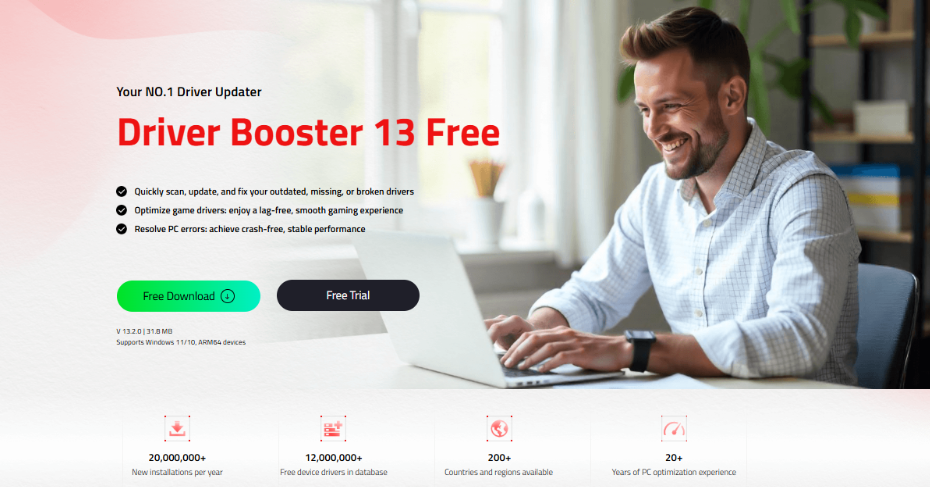
Driver Booster 13 is a free Windows tool. It scans your PC for outdated, missing, or faulty drivers, and updates them from a database of over 18 million drivers.
Here’s how it stands out:
- Works on Windows XP, Vista, 7, 8, 8.1, 10, 11, and even Windows 10/11 ARM64 devices.
- Scans 20% faster than the previous version.
- Installs drivers 8% faster with a 57% higher success rate.
- Supports 38 languages and has a fresh, modern interface.
- Free to use (Freeware), no hidden costs.
How to Download and Install Driver Booster 13
Getting started is simple. Follow these steps:
- Go to the official page: Visit the IObit driver updater or download it.
- Run the installer: Open the downloaded file “driver_booster_setup.exe (31.8 MB).
- Follow the setup wizard: Click Next, accept the license, and install by choosing the install folder.
- Launch the app: When installed, Driver Booster opens automatically.
How to Scan and Update Your Drivers
The next step is to update the drivers. The process requires a few minutes:
- Click ‘Scan’: Hit the big blue Scan button. Driver Booster will check all your hardware for driver problems.
- Review the results: After scanning, you see a list of outdated or missing drivers. It shows the device name and updating requirements.
- Update: You can click ‘Update All’ to fix things or pick individual drivers. Then wait for the update to finish. Driver Booster automatically downloads and installs the driver.
Useful Features You Should Know About
Driver Booster 13 has more tools beyond just updating drivers. Here’s how you can save a lot of time:
Fix Common PC Problems
In the Toolbox section, you’ll find tools like Fix No Sound (restores sound if audio stops working), Fix Bad Resolution (corrects display issues), Fix Network Failure (restores network connection if the internet is lost), and Fix Device Error (resolves device hardware errors). These tools diagnose and solve common PC issues quickly.
Backup Before You Update
Before updating, Driver Booster automatically saves copies of your existing drivers and creates a Windows restore point. If there’s any trouble with a new driver, you can easily use these backups or restore points to go back to your previous system state.
Auto-Update in the Background
You can set Driver Booster to scan for driver updates when your PC starts or to update drivers automatically, even when your computer isn’t in use. Enable this by going to Settings and turning on Auto-update. This helps keep your system up to date without manual work.
Update Without Internet
If your PC doesn’t have an internet connection, use the Offline Driver Updater feature. This lets you download drivers on another PC and transfer them to the target computer, allowing you to install important drivers without any network connection, which is helpful for new Windows installations.
Boost Your Gaming Performance
Driver Booster manages essential game drivers such as DirectX (for graphics), Visual C++ (for game components), and PhysX (for physics effects). The Game Boost feature temporarily shuts down unnecessary background tasks and frees up memory, aiming for up to 5% better game performance by ensuring more system resources go toward gaming.
Is Driver Booster Safe to Use?
Yes. All drivers in Driver Booster come from official manufacturer sites or Windows. They pass WHQL certification, the industry safety check. IObit also reviews each driver, so you never get risky drivers.
Keep Your PC Running at Its Best
Driver Booster 13 makes driver management effortless. Whether you’re fixing a sound problem, setting up a new PC, or trying to squeeze more FPS out of your games, this tool handles it all. It’s free, easy to use, and works on almost every version of Windows.
Download Driver Booster 13 now to experience a smoother, faster, and more reliable PC. Take action and see the benefits of a fully updated system today!